TikTok scheduler for videos and photo carousels
PostQuest is a TikTok scheduler for videos, photo posts, and photo carousels. You upload the media, write the caption, answer the settings TikTok requires, and pick a time. PostQuest holds the post and publishes it straight to your profile at that time, so there is no phone notification to finish.
TikTok Studio can schedule videos for free from a desktop browser, up to 10 days ahead. PostQuest is for people who plan further out, schedule photo carousels, run several TikTok accounts, or post the same idea to Instagram, YouTube, and other networks.
- Accounts
- Business and Creator accounts
- Post types
- Video, Photo Post, Photo Carousel
- Caption limit
- 2,200 characters
- Price
- From $15 a month
- Seven-day free trial, no card required
Last verified
What you can schedule on TikTok
PostQuest checks every TikTok post against these limits before it is scheduled. They come from the same rules that power the composer, last checked against TikTok’s API documentation on September 11, 2026.
| Format | Files | Limits |
|---|---|---|
| Video | 1 file | Up to 4 GB · 3 s–10 min · MP4, WebM, MOV |
| Photo Post | 1 file | Up to 10 MB · JPEG, WebP |
| Photo Carousel | 2–35 files | Up to 10 MB · JPEG, WebP |
Captions can be up to 2,200 characters. Hashtags: no hard limit. See every dimension, aspect ratio, and codec on the TikTok post size and specs page.
TikTok Studio vs PostQuest
TikTok Studio, TikTok’s web upload page, can schedule a video from 15 minutes to 10 days ahead in a desktop browser. Scheduled posts can’t be edited, only deleted, and scheduling isn’t available on mobile web.
| Feature | TikTok Studio | PostQuest |
|---|---|---|
| Price | Free | From $15 a month after a seven-day trial |
| Scheduling window | 15 minutes to 10 days ahead | Any future date; PostQuest holds the post until then |
| Where you schedule | A desktop browser | The web app, plus Claude or ChatGPT over MCP |
| Formats | Videos | Videos, single photos, and photo carousels of 2 to 35 images |
| Edit after scheduling | No; delete and upload again | Yes, until the post publishes |
| Several accounts | The account you’re logged in to | Several TikTok accounts in one post |
| Other networks | TikTok only | Nine more, including Instagram, YouTube, and LinkedIn |
Use TikTok Studio if you post a few videos a week from one account and plan less than 10 days ahead. Use PostQuest when you schedule further out, post photo carousels on a calendar, or publish the same content to TikTok and other networks.
For a step-by-step walkthrough of TikTok Studio, including mobile and company Pages, read how to schedule TikTok posts.
Which TikTok accounts can you connect?
Connect one or more TikTok accounts and approve PostQuest’s access in TikTok. PostQuest publishes with TikTok’s Direct Post method, so the post goes live on your profile without a step in the TikTok app.
- Each TikTok account counts as one account on your plan, and one post can go to several of them with a caption per account.
- TikTok limits Direct Post to about 15 posts per creator account in 24 hours, shared across every app you have connected.
- You choose who can view each post: Everyone or Only me. Followers and Friends visibility isn’t available.
How to schedule TikTok posts in PostQuest
Step 1: Connect your TikTok account
Open Connections, choose TikTok, and approve PostQuest’s access in TikTok. Repeat for each account you want to schedule to.
Step 2: Select the account and add media
Choose one or more TikTok accounts in the composer, then upload one video or up to 35 photos for a photo post or carousel. Each file is checked against TikTok’s format, size, resolution, length, and frame-rate limits.
Step 3: Write the caption
Write up to 2,200 characters for a video, or 4,000 for a photo post. Photo posts also need a title of up to 90 characters. Switch to an account’s tab to give it its own caption.
Step 4: Answer TikTok’s settings
TikTok requires every app to ask who can view the post, whether people can comment, Duet, or Stitch, and whether it is AI-generated or promotes a brand. The panel shows the label TikTok will apply.
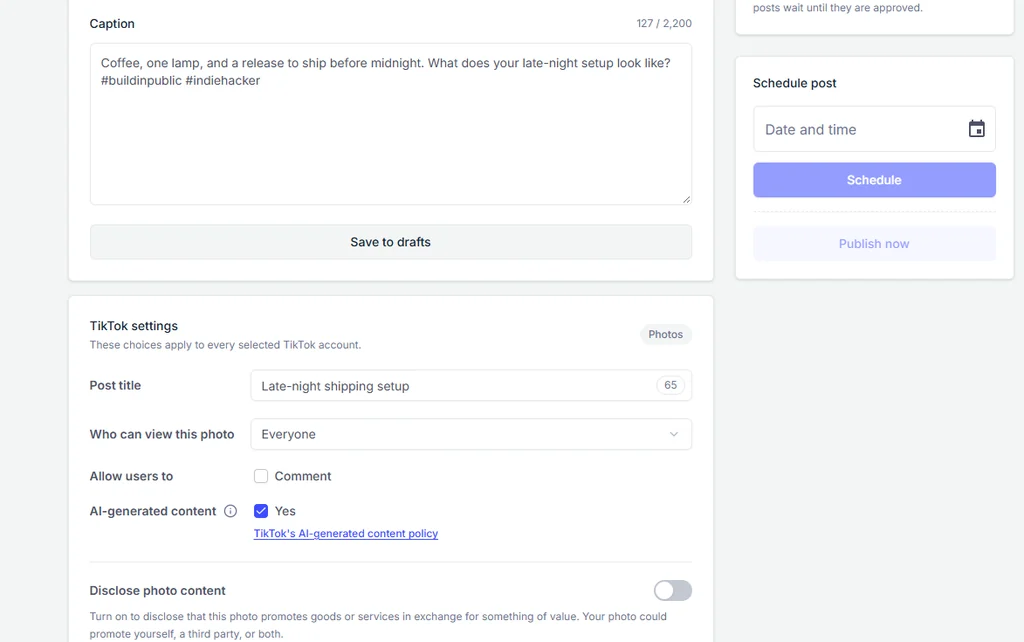
Step 5: Choose a time and schedule
Pick a date and time in your workspace time zone and click Schedule. Until the post publishes, you can change it and click Update schedule.
Want more detail, including the native workflow? Read how to schedule TikTok posts.
Schedule TikTok posts from Claude or ChatGPT
Connect PostQuest to Claude or ChatGPT over MCP and ask for posts in plain language. The assistant creates drafts by default; scheduling, publishing, and deleting need your explicit approval.
“Write a TikTok caption for the video I uploaded, set it to Everyone with comments on, and save it as a draft.”
“Make an Instagram Reel caption and a YouTube Shorts title from this TikTok draft, then validate all three.”
“Schedule the approved TikTok for Tuesday at 7 p.m. Chicago time.”
Why a TikTok post fails, and how to fix it
PostQuest catches these before scheduling, so you fix them in the composer instead of finding a failed post later.
- The TikTok settings panel is incomplete
- TikTok has no default privacy setting, so the Schedule button stays disabled until you choose who can view the post and answer the disclosure questions.
- A video longer than your account allows
- Every creator can post videos up to 3 minutes through TikTok’s API; some accounts get 5 or 10 minutes. Trim the video to your account’s maximum.
- Photos that aren’t JPEG or WebP, or are over 10 MB
- TikTok photo posts take JPEG or WebP images up to 1080p. Convert or resize them; PostQuest flags images over 10 MB.
- Branded content set to Only me
- TikTok doesn’t allow private Paid partnership posts. Set the post to Everyone, or turn off the branded content disclosure if it doesn’t apply.
- TikTok’s daily posting cap
- Direct Post allows about 15 posts per account in 24 hours, shared across all your connected apps. Spread posts across days, then retry the failed post.
Pricing
Every plan includes all ten networks, the calendar, pre-publish checks, the public API, and the MCP connection for Claude and ChatGPT. Start with a seven-day free trial; no card required.
Solo
$15 / month
or $150 billed yearly
8 connected accounts, 1 workspace
Pro
$29 / month
or $290 billed yearly
20 connected accounts, 3 workspaces
Agency
$69 / month
or $690 billed yearly
60 connected accounts, 15 workspaces
TikTok scheduler FAQ
How far in advance can I schedule TikTok posts?
TikTok Studio allows 15 minutes to 10 days ahead. PostQuest stores the post itself and publishes it at the time you choose, so it has no 10-day limit; you can schedule weeks or months ahead.
Can I schedule TikTok photo carousels?
Yes. PostQuest schedules single photos and carousels of up to 35 JPEG or WebP images, with a title of up to 90 characters and a description of up to 4,000. TikTok Studio’s scheduler covers videos only.
Can I edit a scheduled TikTok?
In PostQuest, yes: change the caption, media, settings, or time until the post publishes, then click Update schedule. TikTok Studio doesn’t allow edits; you delete the scheduled post and upload it again.
Is there a free TikTok scheduler?
Yes. TikTok Studio schedules videos for free from a desktop browser, up to 10 days ahead. PostQuest has a seven-day free trial but no free plan; it is built for TikTok alongside other networks.
Can Claude or ChatGPT schedule TikTok posts?
Yes, through PostQuest’s MCP connection. The assistant can draft a caption for a video you uploaded, fill in TikTok’s settings, and validate the post. It asks for your approval before scheduling, publishing, or deleting anything.
Keep planning
- TikTok image and video specs for every format PostQuest publishes.
- The best time to post on TikTok, based on published engagement studies.
- Connect Claude to PostQuest to draft posts from a conversation.
Schedule your first TikTok post
Connect TikTok, write once, and let PostQuest check the post before it goes on the calendar.