Pinterest scheduler for image, video, and carousel Pins
PostQuest is a Pinterest scheduler for image Pins, video Pins, and carousels of two to five images. You choose the board, add a title, description, and link, and pick a time. Before the Pin is scheduled, PostQuest checks the file and the text against Pinterest’s publishing limits.
Pinterest’s own scheduler is free for business accounts but holds only 10 Pins at a time, up to 30 days ahead. That is short for Pinterest, where seasonal Pins work best when planned weeks early. PostQuest has neither limit and puts Pinterest on the same calendar as Instagram, TikTok, and your other networks.
- Accounts
- Pinterest accounts and their boards
- Post types
- Image Pin, Video Pin, Carousel Pin
- Caption limit
- 800 characters
- Price
- From $15 a month
- Seven-day free trial, no card required
Last verified
What you can schedule on Pinterest
PostQuest checks every Pinterest post against these limits before it is scheduled. They come from the same rules that power the composer, last checked against Pinterest’s API documentation on September 11, 2026.
| Format | Files | Limits |
|---|---|---|
| Image Pin | 1 file | Up to 10 MB · JPEG, PNG |
| Video Pin | 1 file | Up to 2 GB · 4 s–15 min · MP4, MOV |
| Carousel Pin | 2–5 files | Up to 10 MB · JPEG, PNG |
Captions can be up to 800 characters. Hashtags: no hard limit. See every dimension, aspect ratio, and codec on the Pinterest post size and specs page.
Pinterest’s Pin scheduler vs PostQuest
Pinterest business accounts can schedule standard Pins on the web or in the app, up to 30 days ahead. You schedule one Pin at a time and can have up to 10 scheduled at once. After scheduling you can change the date, title, board, description, and link, but not the image or video.
| Feature | Pinterest’s Pin scheduler | PostQuest |
|---|---|---|
| Price | Free | From $15 a month after a seven-day trial |
| Scheduling window | Up to 30 days ahead | Any future date, so seasonal Pins can be queued months early |
| Pins scheduled at once | Up to 10 | No Pinterest-specific limit; your plan’s post limits apply |
| Formats | Standard Pins | Image Pins, video Pins, and carousels of 2 to 5 images |
| Edit after scheduling | Date, title, board, description, and link; not the media | Anything, including the media, until the Pin publishes |
| Other networks | Pinterest only | Nine more, including Instagram, TikTok, and YouTube |
| AI assistants | Not part of this comparison | Claude and ChatGPT draft and schedule over MCP, with your approval |
Use Pinterest’s scheduler if you post a handful of Pins a week and plan less than a month ahead. Use PostQuest when you queue seasonal Pins further out, schedule video or carousel Pins, or post the same content to Pinterest and other networks.
How to schedule in Pinterest’s Pin scheduler
- Log in to your Pinterest business account on the web.
- Click Create, then Create Pin.
- Upload an image or video and add the title, description, link, and board.
- Choose Publish at a later date and set the day and time, up to 30 days ahead.
- Click Publish. Scheduled Pins appear on your profile above your published Pins.
Source: Pinterest Help: Schedule Pins; Pinterest Developers: Create Pin
Which Pinterest accounts can you connect?
Connect a Pinterest account, then choose one of its boards for each Pin. You can create a new board from the composer without opening Pinterest.
- Each Pinterest account counts as one account on your plan; its boards don’t count separately.
- Pick the board under “Pinning to” in the composer, or search your boards by name.
- If Pinterest revokes access, the account shows Reconnect. Failed Pins can be retried once it is reconnected.
How to schedule Pinterest posts in PostQuest
Step 1: Connect your Pinterest account
Open Connections, choose Pinterest, and approve access to your boards. Repeat for each Pinterest account you manage.
Step 2: Choose the account and the board
Select the Pinterest account in the composer, then pick a board under “Pinning to”. If the board doesn’t exist yet, create it from the same dialog.
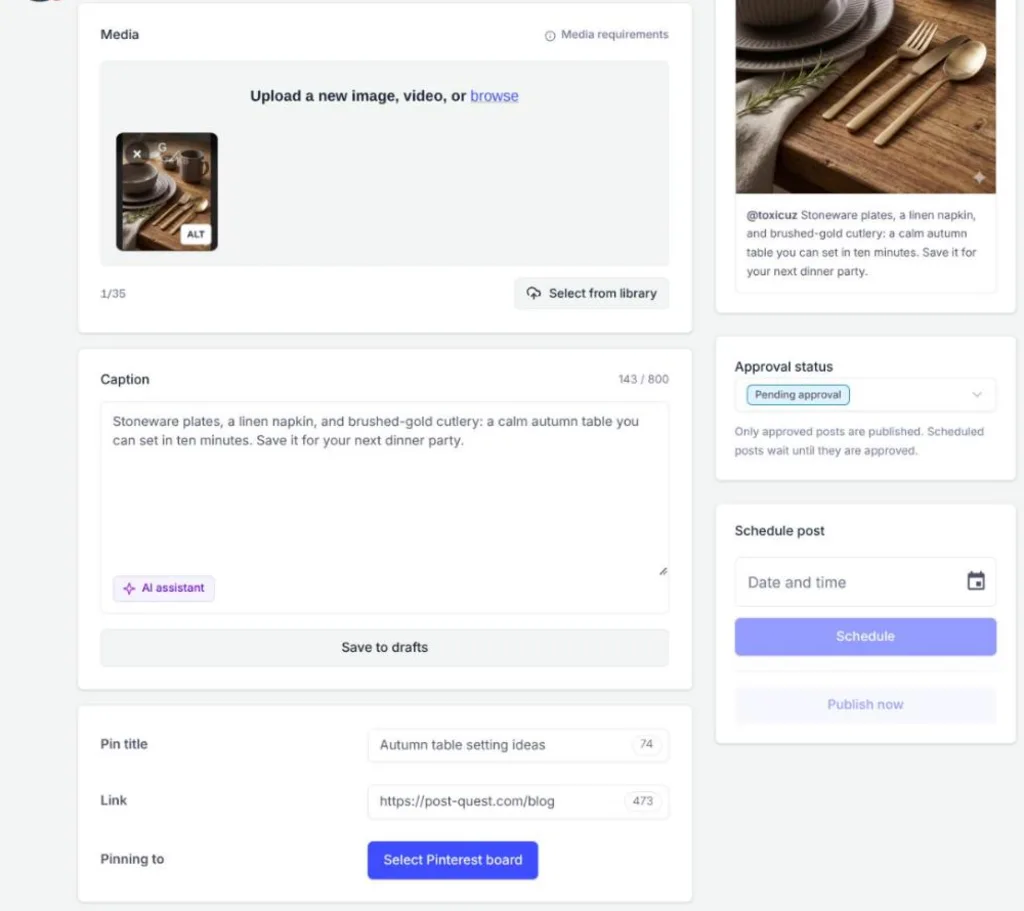
Step 3: Add the image, video, or carousel
Upload one JPEG or PNG image, one MP4 or MOV video, or two to five images of the same size for a carousel. Media requirements lists the limits PostQuest checks.
Step 4: Write the title, description, and link
Add a Pin title of up to 100 characters and a link to your page. The caption becomes the Pin description, up to 800 characters.
Step 5: Choose a time and schedule
Pick a date and time in your workspace time zone and click Schedule. You can still change the Pin, including its media, until it publishes.
Schedule Pinterest posts from Claude or ChatGPT
Connect PostQuest to Claude or ChatGPT over MCP and ask for posts in plain language. The assistant creates drafts by default; scheduling, publishing, and deleting need your explicit approval.
“Draft five Pinterest Pin titles and descriptions for our holiday gift guide, each linking to the guide, and save them as drafts.”
“Turn my latest Instagram carousel draft into a Pinterest carousel Pin for the Recipes board and validate it.”
“Schedule the approved Valentine’s Day Pins for January 15 at 9 a.m. New York time.”
Why a Pinterest post fails, and how to fix it
PostQuest catches these before scheduling, so you fix them in the composer instead of finding a failed post later.
- A WebP, GIF, or HEIC image
- Pinterest image Pins take JPEG or PNG files up to 10 MB. Convert the image first; a 2:3 ratio such as 1000 × 1500 pixels displays best.
- Carousel images of different sizes
- A carousel Pin needs two to five images with the same aspect ratio. Crop them to one size, or post them as separate Pins.
- A video shorter than 4 seconds or longer than 15 minutes
- Pinterest video Pins must be MP4 or MOV, 4 seconds to 15 minutes long, in a 1:1, 2:3, 4:5, or 9:16 ratio. Trim or re-export the video.
- No board selected
- Every Pin needs a board. Choose one under “Pinning to”, or create a new board from the same dialog.
- A description over 800 characters
- The caption becomes the Pin description, which Pinterest caps at 800 characters. Shorten the Pinterest version; your other networks keep their own captions.
Pricing
Every plan includes all ten networks, the calendar, pre-publish checks, the public API, and the MCP connection for Claude and ChatGPT. Start with a seven-day free trial; no card required.
Solo
$15 / month
or $150 billed yearly
8 connected accounts, 1 workspace
Pro
$29 / month
or $290 billed yearly
20 connected accounts, 3 workspaces
Agency
$69 / month
or $690 billed yearly
60 connected accounts, 15 workspaces
Pinterest scheduler FAQ
How far in advance can I schedule Pins?
Pinterest’s own scheduler allows up to 30 days ahead and 10 scheduled Pins at a time. PostQuest stores the Pin and publishes it at the time you choose, so you can queue seasonal Pins 45 to 60 days early, as Pinterest recommends for seasonal content.
Can I schedule video and carousel Pins?
Yes. PostQuest schedules image Pins, video Pins from 4 seconds to 15 minutes, and carousels of two to five equally sized images. Each file is checked against Pinterest’s limits before the Pin is scheduled.
Can I create a Pinterest board from PostQuest?
Yes. In the composer, open the board picker under “Pinning to”, search your boards, or create a new one by name. The new board is created on Pinterest and selected for the Pin.
Is there a free Pinterest scheduler?
Yes. Pinterest business accounts can schedule Pins for free, up to 30 days ahead and 10 at a time. PostQuest has a seven-day free trial but no free plan; it is built for Pinterest alongside other networks.
Can Claude or ChatGPT schedule Pinterest Pins?
Yes, through PostQuest’s MCP connection. The assistant can draft Pin titles and descriptions, choose a board, and validate the Pin. It asks for your approval before scheduling, publishing, or deleting anything.
Keep planning
- Pinterest image and video specs for every format PostQuest publishes.
- The best time to post on Pinterest, based on published engagement studies.
- Connect Claude to PostQuest to draft posts from a conversation.
Schedule your first Pinterest post
Connect Pinterest, write once, and let PostQuest check the post before it goes on the calendar.