YouTube scheduler for videos and Shorts
PostQuest is a YouTube scheduler for long-form videos and Shorts. You upload the video, write the title and description, set visibility, category, and the made-for-kids answer, and pick a time. PostQuest checks the file and text against YouTube’s limits before the upload is scheduled.
YouTube Studio schedules uploads for free. PostQuest is for people who publish the same vertical video as a YouTube Short, a TikTok, and an Instagram Reel, or who want YouTube on one calendar with their other networks.
- Accounts
- YouTube channels
- Post types
- Video, Short
- Caption limit
- 5,000 characters
- Price
- From $15 a month
- Seven-day free trial, no card required
Last verified
What you can schedule on YouTube
PostQuest checks every YouTube post against these limits before it is scheduled. They come from the same rules that power the composer, last checked against YouTube’s API documentation on September 11, 2026.
| Format | Files | Limits |
|---|---|---|
| Video | 1 file | Up to 4 GB · At least 2 s · MP4, MOV, WebM |
| Short | 1 file | Up to 4 GB · Up to 3 min · MP4, MOV, WebM |
Captions can be up to 5,000 characters. Hashtags: 60 per video (recommended: 3–5 hashtags). See every dimension, aspect ratio, and codec on the YouTube post size and specs page.
YouTube Studio vs PostQuest
YouTube Studio lets you schedule an upload from its Visibility step by choosing a date, time, and time zone. The video stays private until then. You can also schedule a Premiere, which Shorts don’t support.
| Feature | YouTube Studio | PostQuest |
|---|---|---|
| Price | Free | From $15 a month after a seven-day trial |
| Formats | Videos, Shorts, and Premieres | Videos and Shorts; Premieres aren’t supported |
| Upload settings | Every YouTube setting, including thumbnails, playlists, and end screens | Title, description, category, visibility, license, subscriber notifications, embedding, and made for kids |
| Change a scheduled video | Edit the draft in Studio while it stays private | Edit the post and click Update schedule until it publishes |
| Other networks | YouTube only | Send the same vertical video to TikTok, Instagram Reels, and seven more networks |
| AI assistants | Not part of this comparison | Claude and ChatGPT draft and schedule over MCP, with your approval |
Use YouTube Studio for long-form videos that need custom thumbnails, playlists, end screens, or a Premiere. Use PostQuest when you publish Shorts alongside TikTok and Reels, or want your YouTube uploads on the same calendar as your other networks.
How to schedule in YouTube Studio
- In YouTube Studio, click Create, then Upload videos.
- Select the video file.
- Add the title, description, and other details.
- On the Visibility step, choose Schedule and set the date, time, and time zone.
- Click Schedule. To change it later, open Content, select the video, and edit its visibility.
Source: YouTube Help: Schedule videos; YouTube Help: Set up a Premiere; YouTube Help: Upload YouTube Shorts; YouTube Data API: Videos
Which YouTube accounts can you connect?
Connect a YouTube channel and allow PostQuest to upload videos to it. Each channel counts as one account on your plan.
- YouTube treats an upload as a Short when it is 3 minutes or shorter with a vertical or square aspect ratio. PostQuest checks Shorts against those limits.
- You can connect several channels and send one video to more than one of them.
- If Google revokes access, the channel shows Reconnect. Failed uploads can be retried once it is reconnected.
How to schedule YouTube posts in PostQuest
Step 1: Connect your YouTube channel
Open Connections, choose YouTube, and sign in with the Google account that manages the channel. Allow PostQuest to upload videos.
Step 2: Select the channel and add the video
Choose the channel in the composer and upload one video. A vertical or square video of 3 minutes or less publishes as a Short.
Step 3: Write the title and description
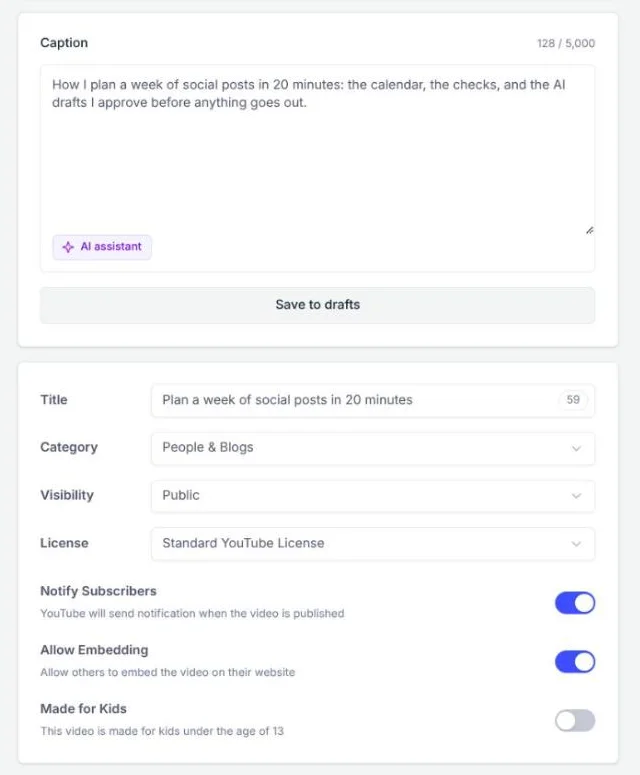
Give the video a title of up to 100 characters. The caption becomes the description, up to 5,000 characters.
Step 4: Set the YouTube options
Choose the category, visibility (Public, Unlisted, or Private), and license, whether to notify subscribers and allow embedding, and whether the video is made for kids.
Step 5: Choose a time and schedule
Pick a date and time in your workspace time zone and click Schedule. The video uploads and publishes with the visibility you chose at that time.
Schedule YouTube posts from Claude or ChatGPT
Connect PostQuest to Claude or ChatGPT over MCP and ask for posts in plain language. The assistant creates drafts by default; scheduling, publishing, and deleting need your explicit approval.
“Write a YouTube title under 70 characters and a description with chapters for the video I uploaded, then save it as a draft.”
“Use this TikTok draft as a YouTube Short too, with a title for YouTube, and validate both.”
“Schedule the approved YouTube video for Thursday at 3 p.m. Berlin time as Unlisted.”
Why a YouTube post fails, and how to fix it
PostQuest catches these before scheduling, so you fix them in the composer instead of finding a failed post later.
- A Short longer than 3 minutes
- YouTube only treats vertical or square uploads of 3 minutes or less as Shorts. Trim the video, or publish it as a regular video.
- A horizontal video meant as a Short
- Shorts need a vertical (9:16) or square (1:1) aspect ratio. Re-export the video in 9:16 before scheduling.
- A description that is too long
- YouTube caps descriptions at 5,000 bytes, which is 5,000 characters of plain English text. Shorten the YouTube version; your other networks keep their own captions.
- A file over 4 GB
- PostQuest accepts YouTube videos up to 4 GB. Export at a lower bitrate, or upload very large files in YouTube Studio.
- The channel needs reconnecting
- If you changed your Google password or removed PostQuest’s access, reconnect the channel in Connections, then retry the failed upload. Other networks in the same post are not affected.
Pricing
Every plan includes all ten networks, the calendar, pre-publish checks, the public API, and the MCP connection for Claude and ChatGPT. Start with a seven-day free trial; no card required.
Solo
$15 / month
or $150 billed yearly
8 connected accounts, 1 workspace
Pro
$29 / month
or $290 billed yearly
20 connected accounts, 3 workspaces
Agency
$69 / month
or $690 billed yearly
60 connected accounts, 15 workspaces
YouTube scheduler FAQ
Can I schedule YouTube Shorts?
Yes. Upload a vertical or square video of 3 minutes or less, and YouTube publishes it as a Short. PostQuest checks the length and aspect ratio before scheduling, and you can send the same video to TikTok and Instagram Reels in one post.
Can PostQuest schedule a YouTube Premiere?
No. PostQuest publishes videos at the scheduled time with the visibility you chose. To run a Premiere with a countdown and live chat, schedule it in YouTube Studio. YouTube doesn’t support Premieres for Shorts.
Can I set a custom thumbnail or playlist?
Not in PostQuest. It sets the title, description, category, visibility, license, subscriber notifications, embedding, and made-for-kids answer. Add a custom thumbnail, playlist, or end screen in YouTube Studio after the video uploads.
Is there a free YouTube scheduler?
Yes. YouTube Studio schedules videos, Shorts, and Premieres for free. PostQuest has a seven-day free trial but no free plan; it is built for publishing to YouTube alongside TikTok, Instagram, and other networks.
Can Claude or ChatGPT schedule YouTube videos?
Yes, through PostQuest’s MCP connection. The assistant can write titles and descriptions for a video you uploaded, fill in the YouTube settings, and validate the post. It asks for your approval before scheduling, publishing, or deleting anything.
Keep planning
- YouTube image and video specs for every format PostQuest publishes.
- The best time to post on YouTube, based on published engagement studies.
- Connect Claude to PostQuest to draft posts from a conversation.
Schedule your first YouTube post
Connect YouTube, write once, and let PostQuest check the post before it goes on the calendar.